
Documentation
Getting started
In the box
- KARL
- 12 V power supply
- USB C cable
1. Plug it in
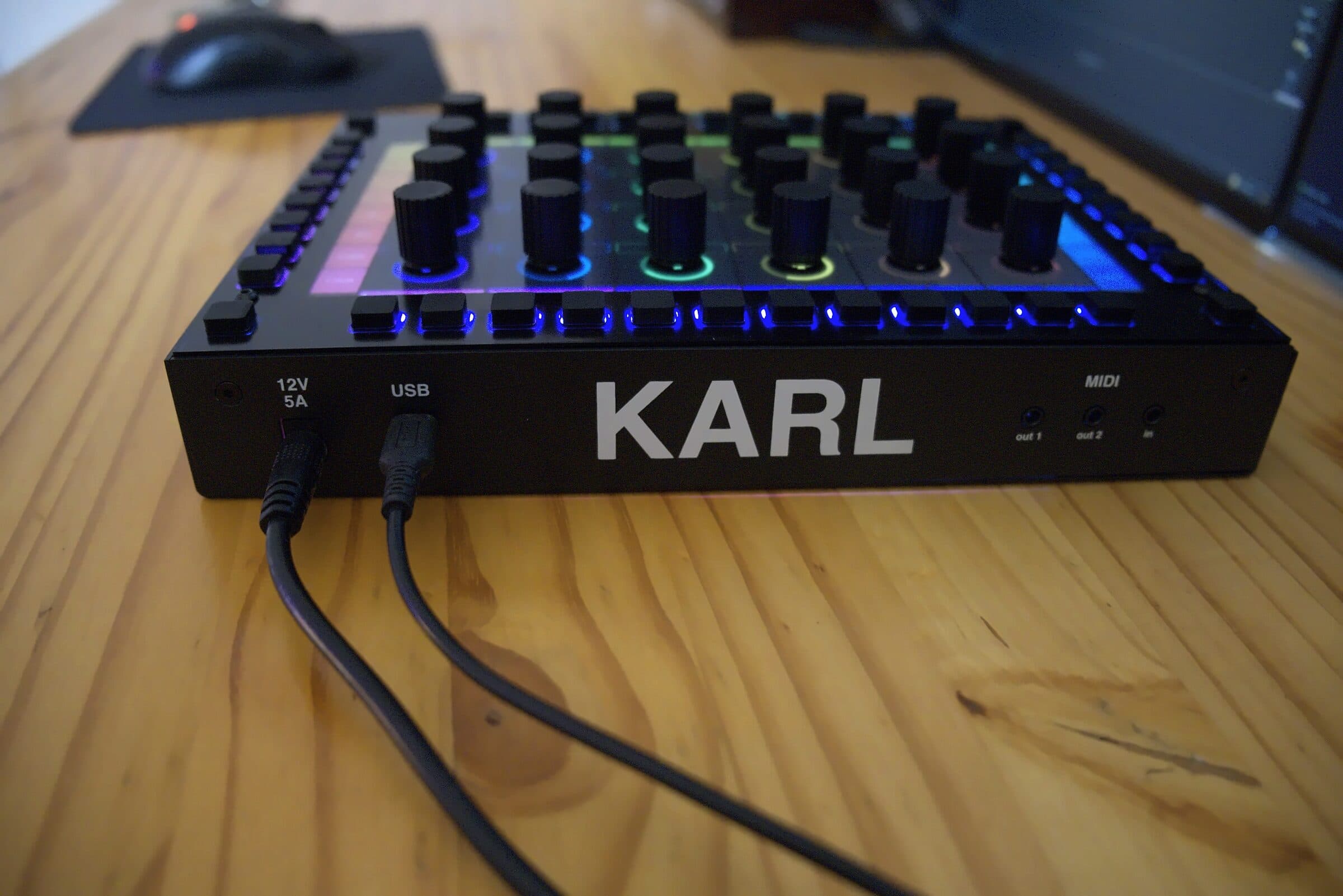
Connect the power supply to the 12 V input on the back, then turn KARL on with the switch on its right side. It starts by itself and shows its first page.
Connect the USB port on the back to your computer. KARL shows up as a MIDI device called KARL followed by four characters from its serial number, with two MIDI ports in each direction. The same cable carries the link to the configurator.
2. Install the configurator
The KARL Configurator is the app on your computer that edits KARL's pages, installs updates, and connects it to Ableton Live, OSC apps and DMX lights. It runs on Mac, Windows and Linux.
| KARL Configurator | Mac with Apple silicon | download |
| KARL Configurator | Mac with Intel | download |
| KARL Configurator | Windows 10 or later | download |
| KARL Configurator | Linux, AppImage | download |
| KARL Remote Script | Ableton Live 12 and 13 | ask us for it |
| KarlMapper | Max for Live, Max 9.1 or later | ask us for it |
Install it and open it. It finds KARL over USB by itself.
Opening it the first time on a Mac
The first time you open the configurator, macOS says “Apple could not verify KARL Configurator.app is free of malware” and offers to move it to the bin. Click Done, then allow it once:
- Open the DMG and drag KARL Configurator to Applications.
- Open KARL Configurator from Applications. When the message appears, click Done.
- Open System Settings and go to Privacy and Security.
- Scroll down to Security. Next to “KARL Configurator was blocked to protect your Mac”, click Open Anyway.
- Enter your Mac password, then click Open Anyway in the window that appears.
macOS remembers your choice and the configurator then opens like any other app. A new version you download asks once more.
Opening it the first time on Windows
Windows may show “Windows protected your PC”. Click More info, then Run anyway.
3. Choose what to control
- Ableton Live: install the Remote Script and pick KARL as a control surface. See Ableton Live.
- Your DAW or any MIDI app: make a page with the CCs or notes you want and map them in the app. See the configurator and MIDI, OSC and DMX.
- Hardware synths: connect them to the MIDI jacks with 3.5 mm TRS cables (type A), or TRS to DIN adapters.
- Gear with its own extension: turn on its ready-made pages. See Extensions.
Using KARL without a computer
Your pages live on KARL. With its power supply and a synth on the MIDI jacks, it sends and receives MIDI on its own, can run as the MIDI clock, and can play its step sequencer. Ableton Live, OSC and DMX go through the configurator, so those need the computer.
The keys you will use all the time
- ALT: the four corner keys. Hold one to reach the second job of a knob or key.
- Pages: each page can have keys that open other pages. Which keys depends on the page.