
Documentation
Ableton Live
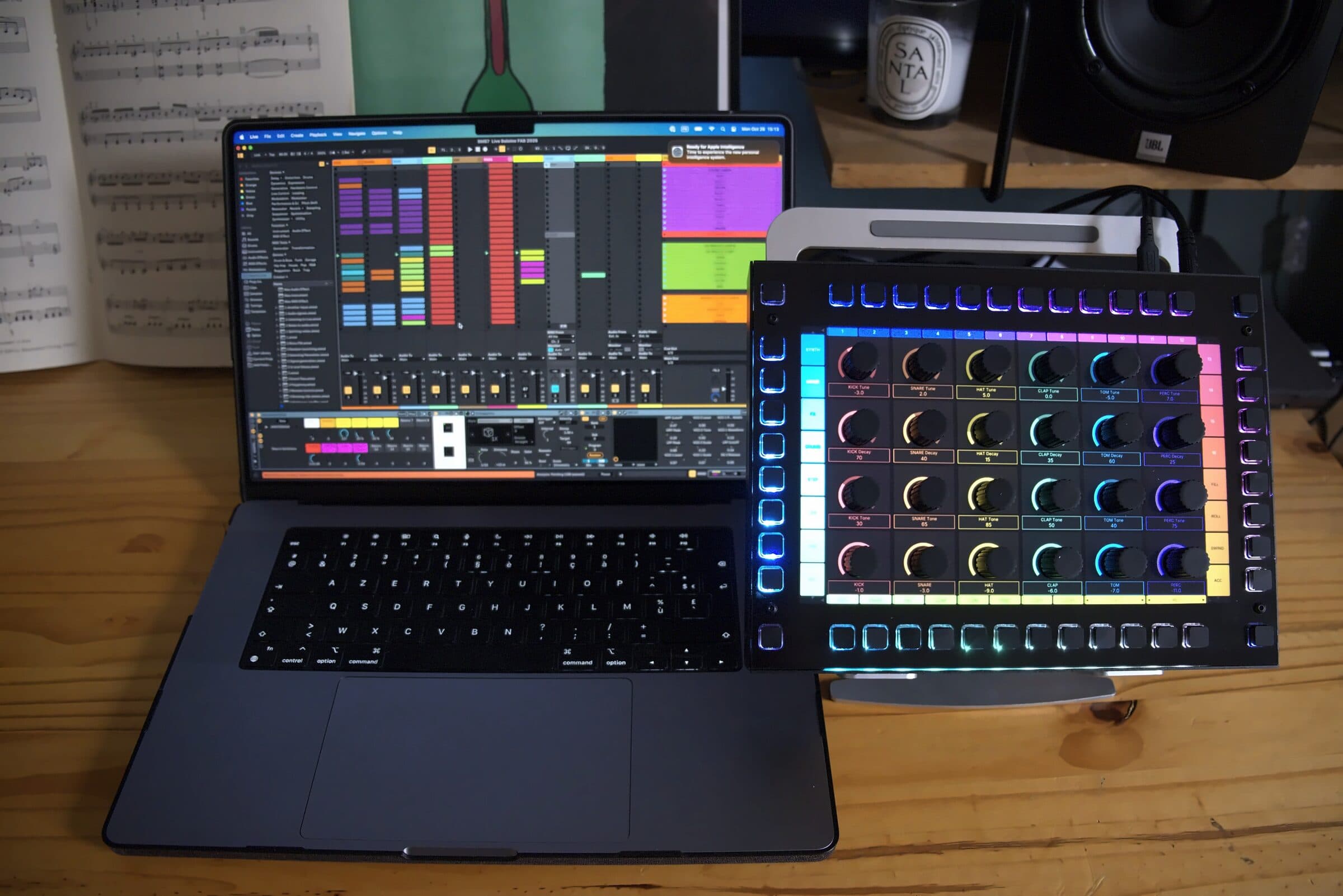
What you need
- Ableton Live 12. The Remote Script does not load in older versions.
- The KARL Configurator, running on the same computer as Live. It carries everything between KARL and Live.
- For KarlMapper: Max 9.1 or later.
| KARL Configurator | Mac with Apple silicon | download |
| KARL Configurator | Mac with Intel | download |
| KARL Configurator | Windows 10 or later | download |
| KARL Configurator | Linux, AppImage | download |
| KARL Remote Script | Ableton Live 12 | ask us for it |
| KarlMapper | Max for Live, Max 9.1 or later | ask us for it |
Install the Remote Script
- Unzip the KARL Remote Script. You get a folder called
KARL. - Put it in your User Library, in
Remote Scripts. On a Mac that is usually~/Music/Ableton/User Library/Remote Scripts/KARL, on WindowsDocuments\Ableton\User Library\Remote Scripts\KARL. Create theRemote Scriptsfolder if it is not there. - Restart Live.
- Open Settings, then Link, Tempo & MIDI. In a free Control Surface slot, pick KARL. Its input and output can stay on None.
- Open the configurator. KARL connects to Live and shows your set.
The Live views
Three views share one frame: Device, Mix and Clips. Two more sit behind ALT: Browse and Keys.
Keys around the edge
| Left, top three | Device, Mix and Clips. With ALT: Browse and Keys. |
| Left, fourth | LOCK. Off, KARL follows Live's selection. On, you browse tracks and devices on KARL alone. |
| Left, bottom four | Play, record, metronome, undo. With ALT: stop all clips, session record, tap tempo, redo. |
| Top | Six tracks, each with a level bar. Press to select a track, or to open and close a group. Hold ALT to scroll through the tracks. |
Device
The selected device's parameters, two of Live's banks at a time, four by two each. Around them: sends A and B, pan and volume for the track, and tempo, launch quantization, cue and main. The device chain sits on the bottom keys. Hold ALT and press a device to switch it on or off.
Mix
Six tracks side by side, each with two sends, pan, and volume with its meter. Mute and solo on the keys, arm and stop with ALT.
Clips
Six tracks by four scenes. Turn a knob right to launch its clip and left to stop it. The ring shows how far the loop has played. There are keys to stop a track and to launch a scene, and groups show a summary of their clips.
Browse
Live's browser, 24 entries a page. Turn a knob right to load the entry, left to hear a preview. The bottom keys hold up to eight places, and two keys add a MIDI or an audio track.
Keys
The keys play ten notes of a scale from its root: major, minor, dorian, phrygian, pentatonic or chromatic, with two keys for the octave. KARL arms the selected track so you can play straight away.
KarlMapper
KarlMapper is a Max for Live audio effect. Drop it on a track and map up to 24 of Live's parameters in its grid, plus 24 more on ALT and up to 40 keys. They appear on KARL's knobs in the same places. It saves and loads its own presets, and the Device view can show it full screen.
KeyTranspose
A pair of Max for Live devices. Hold notes on one track and a looping clip on another follows them, in semitones or in steps of a scale. It can follow Live's own root and scale.
More than one KARL
Several KARLs can control the same Live set side by side, each with its own selection.
If KARL does not see Live
- Check that the configurator is open and connected to KARL.
- Check that KARL is selected as a Control Surface in Live's settings.
- Check the folder name: it must be
Remote Scripts/KARL, with the script files directly inside. - Restart Live after installing or updating the script.